




Introduction
WooCommerce is a free WordPress plugin in wordpress. To create an online store Using this, you can create and manage an online store product. Its provides default future to sell physical products, digital downloads, subscriptions, and more. With WooCommerce, you can manage products, accept payments, handle shipping, and customize your store to fit your business needs.
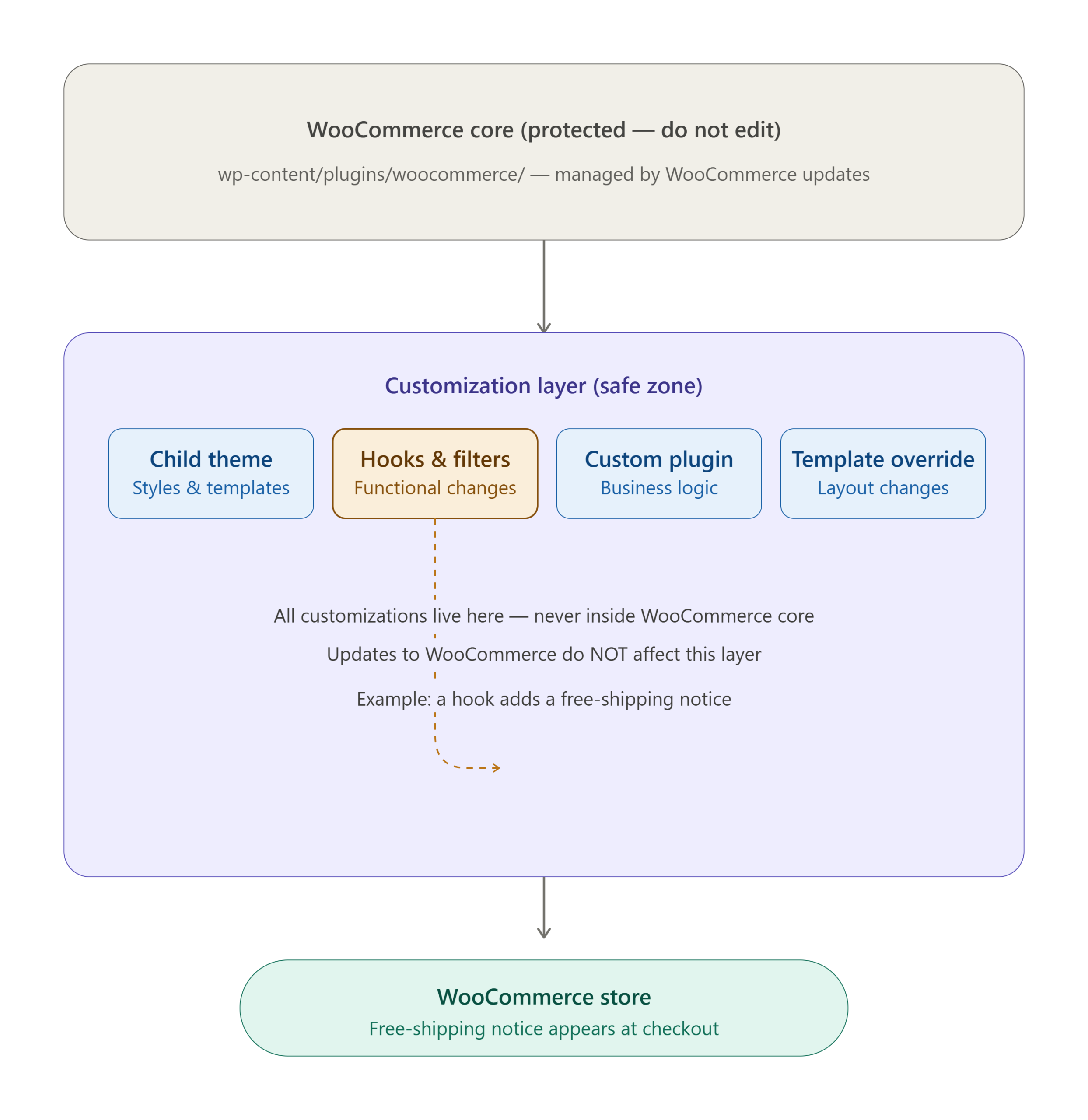
A better option is to customization WooCommerce in wordpress to avoid WooCommerce editing core files. Using the child themes, hooks, filters, template overrides, and custom plugins to make changes safely.
Using this Blogs, Understand How to customize WooCommerce safely without core file changes.
Why you should never edit WooCommerce core files
WooCommerce stores its core functionality inside the plugin directory:
wp-content/plugins/woocommerce/
Files within this directory are managed by the WooCommerce development team and are replaced whenever a new version of the plugin is installed.
Direct modifications may seem harmless at first. A developer changes a template, adjusts a checkout field, or inserts custom logic into a WooCommerce file. Everything works correctly until the next update replaces that file.
Updates can remove customizations
WooCommerce updates frequently include security patches, performance improvements, bug fixes, and compatibility enhancements. During the update process, existing plugin files are replaced with the latest versions.
Consider the following templates:
woocommerce/
├── checkout/form-checkout.php
├── single-product/add-to-cart/simple.php
WooCommerce installs an updated version. The result is often unexpected behavior after an update. Product pages may lose custom content, checkout functionality may stop working correctly, and store layouts may revert to their default state.
Security updates become more difficult
In WordPress, security is most important for e-commerce websites. Using regularly releases updates to store securely, stably, and work properly.
An easy and safe approach is to keep all customizations in a separate file. This makes it easier to install updates as soon as they become available.
Every WooCommerce customization file is added directly to a plugin file, creating additional maintenance work.
When another developer joins the project or troubleshooting becomes necessary, identifying custom changes inside modified core files can take considerable time. The larger the store becomes, the more difficult this process gets. The best way to make customizations in child themes or custom plugins is for development teams to easily locate, test, and update functionality more efficiently without changes to the core file.
Compatibility problems are more likely
Most WooCommerce stores or websites depend on multiple third-party integrations.
These may include:
- Payment gateways
- Shipping providers
- Marketing automation tools
- Inventory management systems
- Membership plugins
Each integration expects WooCommerce to function as intended. Direct changes to core files can create unexpected conflicts when WooCommerce or another plugin is updated.
Maintaining a clean separation between WooCommerce core functionality and custom development helps reduce these compatibility issues.
WooCommerce customization architecture diagram
5 Safe ways to customize WooCommerce
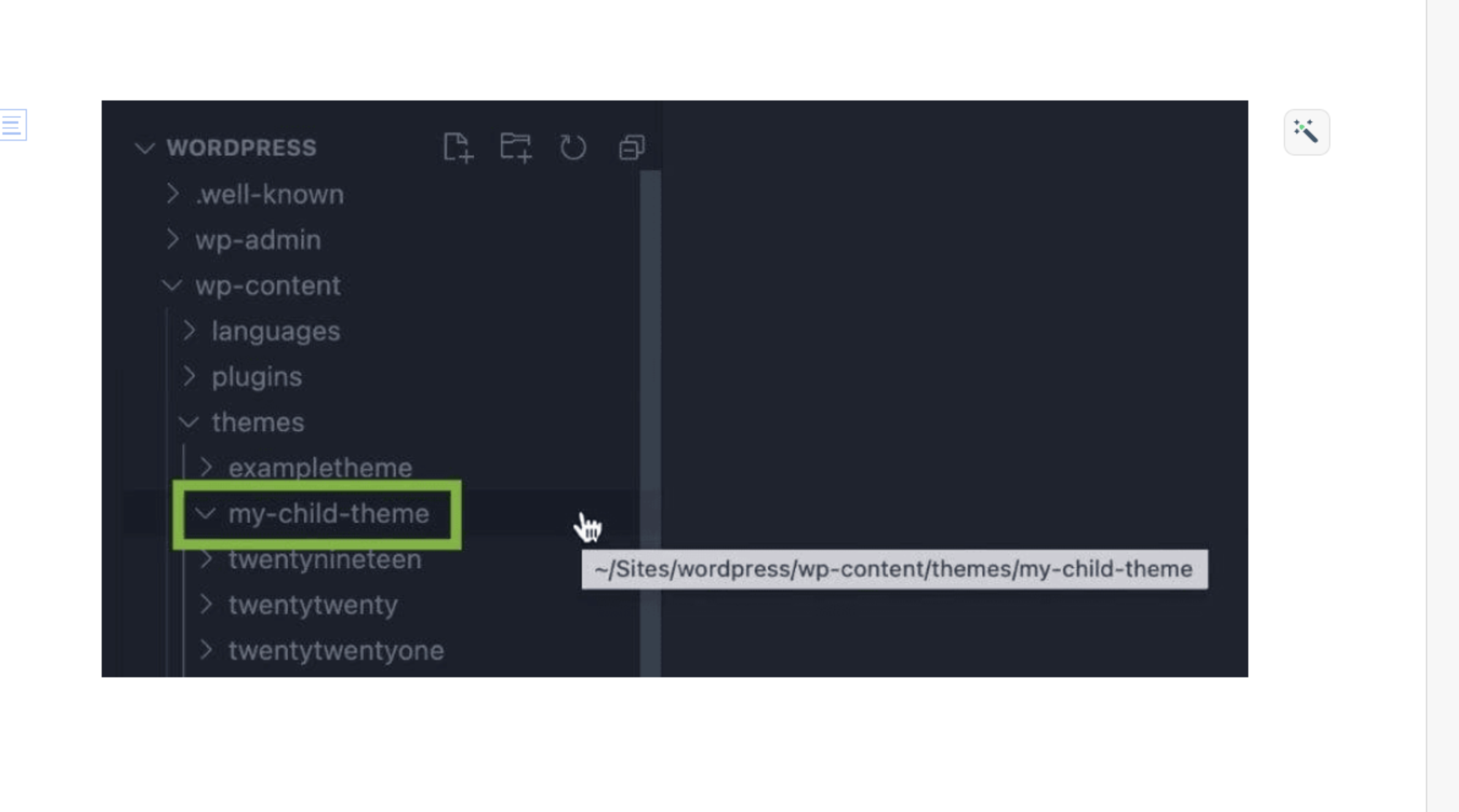
Use a child theme for customization
Child theme allows customization of design and functionality without modifying the parent theme.
Benefits
- Safe theme updates
- Easy maintenance
- Cleaner code organization
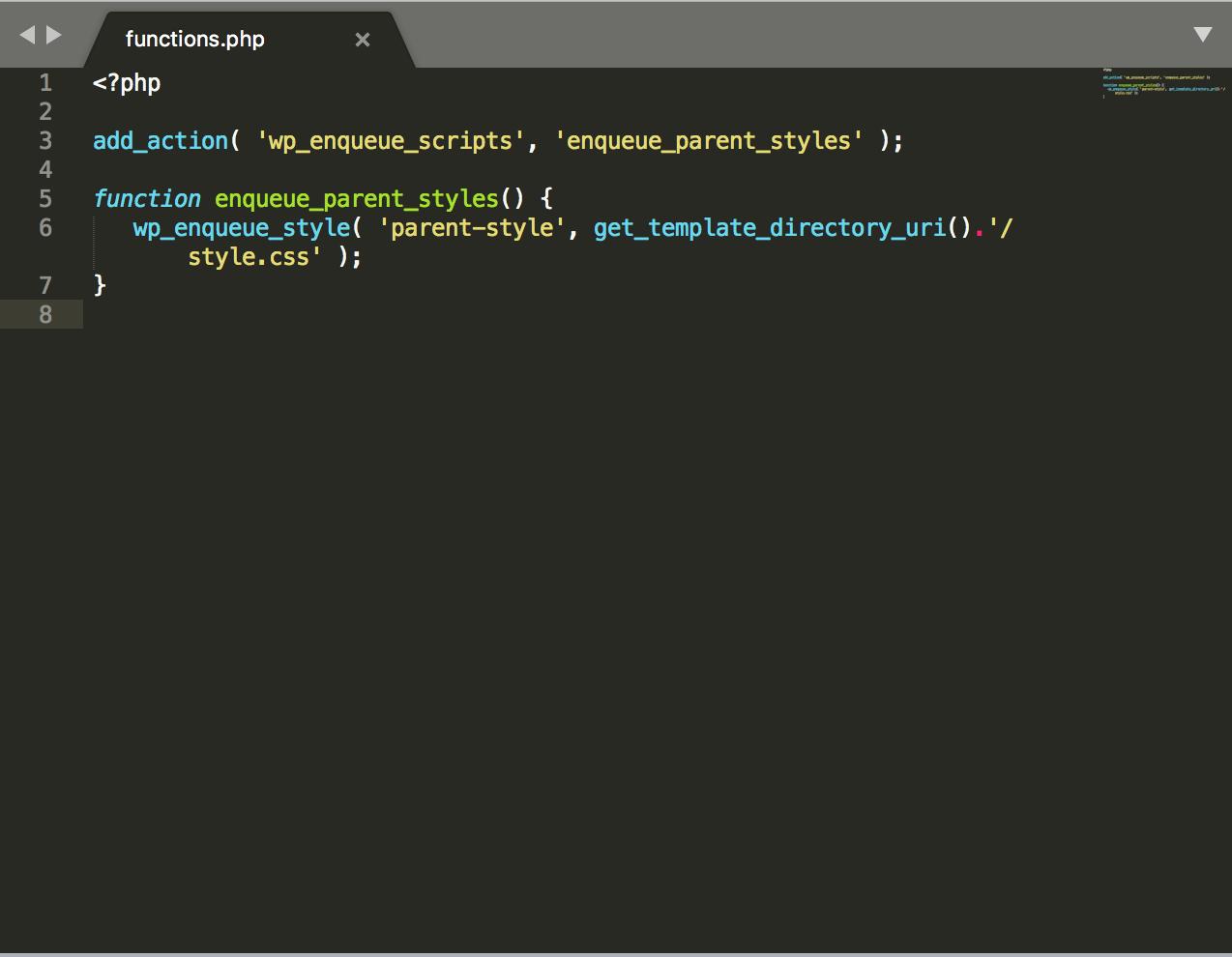
<?php
add_action(
	'wp_enqueue_scripts',
	'my_child_theme_styles'
);
function my_child_theme_styles() {
	wp_enqueue_style(
		'parent-style',
		get_template_directory_uri() . '/style.css'
	);
}
When to use
Use a child theme for:
- Layout changes
- Styling adjustments
- Template overrides
What is the use of hooks and filters in WooCommerce
Using WooCommerce hooks and filters, we can filter the WooCommerce functionality
Here is an example to add functionality without modifying existing files.
Example: Add text after product price
add_action(
    'woocommerce_after_shop_loop_item_title',
    function() {
        echo '<p class="free-shipping">
        Free Shipping Available
        </p>';
    }
);
Example: Change Add to Cart button text
add_filter(
    'woocommerce_product_single_add_to_cart_text',
    function() {
        return 'Buy Now';
    }
);
Why Hooks are preferred
- Update-safe
- Lightweight
- Easier debugging
- Better performance
Override WooCommerce templates
Sometimes hooks are not enough.
WooCommerce supports template overrides.
Example:
Copy:
wp-content/plugins/woocommerce/templates/single-product/title.php
To:
wp-content/themes/your-child-theme/woocommerce/single-product/title.php
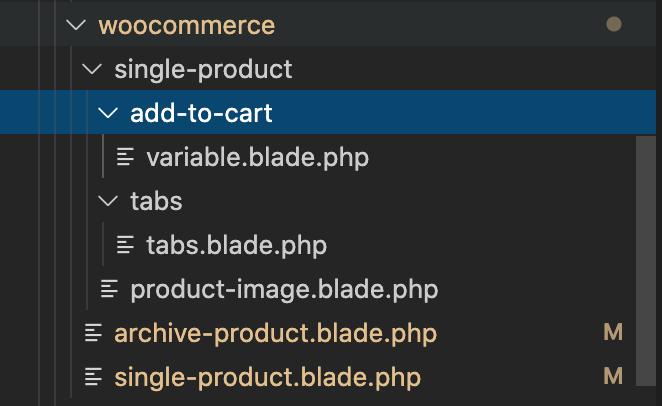
Now you can modify the copied file safely.
Best practice
Only override templates when necessary.
Using the templates is to avoid copying large numbers of templates without a valid reason.
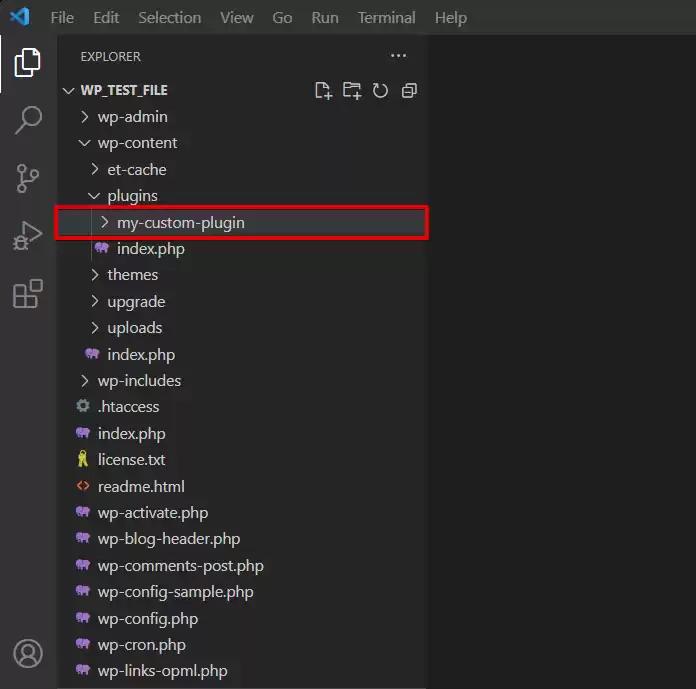
Custom WooCommerce plugin structure
<?php
/**
 * Plugin Name: Custom Tour Payment Link Generator
 * Description: Generate custom payment links for tours with variable pricing via WooCommerce.
 * Version: 1.0.0
 * Author: Custom Development
 */

if ( ! defined( 'ABSPATH' ) ) {
	exit;
}

class Custom_Tour_Payment {
public function __construct() {

		add_action(
			'woocommerce_before_checkout_form',
			array( $this, 'display_checkout_notice' )
		);
	}

	public function display_checkout_notice() {

		echo '<div class="woocommerce-info">
Secure payment link generated successfully.
			  </div>';
	}
}

new Custom_Tour_Payment();
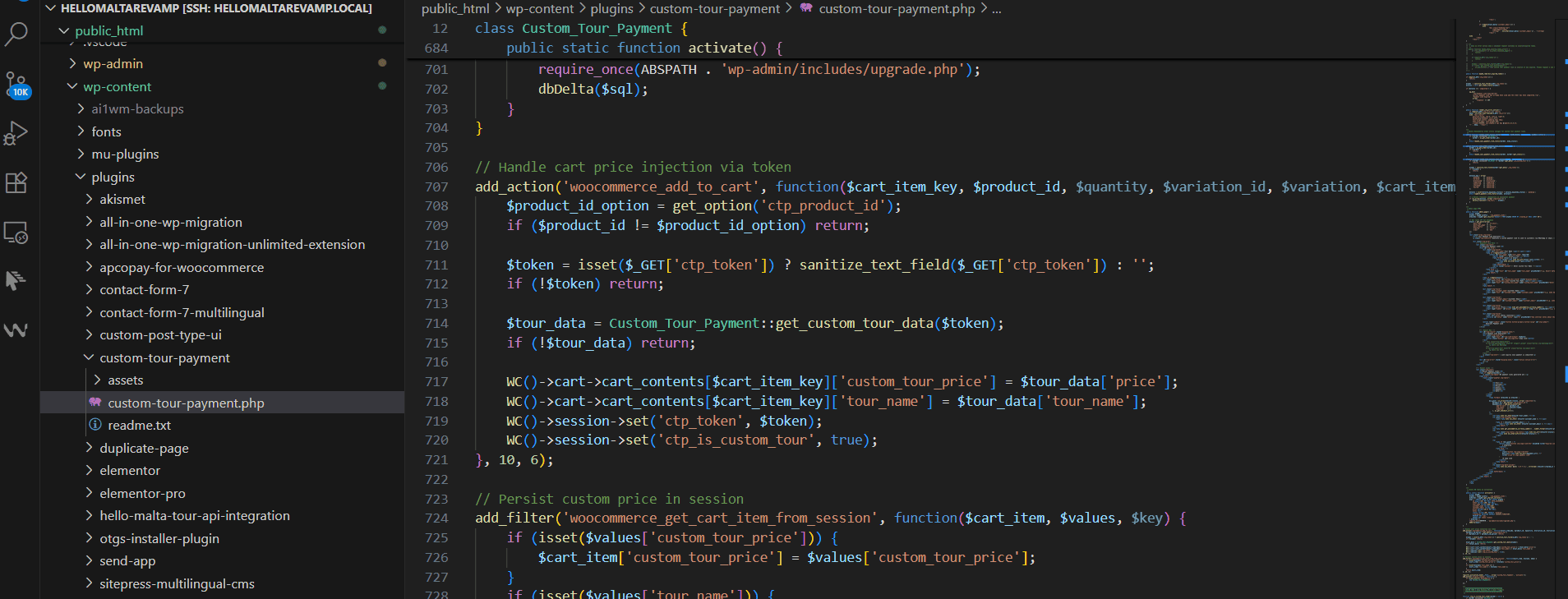
Ideal for
- Checkout customization
- Product logic
- Integrations
- API development
Use WooCommerce-compatible plugins
Many common requirements already have solutions.
Examples include:
- Checkout field editors
- Product add-ons
- Dynamic pricing tools
- Membership systems
Before building custom functionality, check whether a trusted plugin already solves the problem.
WooCommerce hooks vs template overrides
| Feature | Hooks & filters | Template overrides | Feature |
| Update safe | Excellent | Good | Update safe |
| Performance | Fast | Moderate | Performance |
| Maintenance | Easy | Medium | Maintenance |
| Learning curve | Moderate | Moderate | Learning curve |
Performance benchmark comparison
The following benchmark represents a typical WooCommerce product page customization scenario.
| Method | Extra queries | Load impact | Maintenance |
| Core file editing | Low | Low | High risk |
| Hooks & filters | Low | Low | Easy |
| Template overrides | Medium | Medium | Moderate |
| Custom plugin | Low | Low | Easy |
Common WooCommerce customization examples
Example 1: Add trust badges below add to cart
add_action(
    'woocommerce_after_add_to_cart_button',
    function() {
        echo '<div class="trust-badge">
        100% Secure Payment
        </div>';
    }
);
Example 2: Display custom product message
add_action(
    'woocommerce_single_product_summary',
    function() {
        echo '<p>Ships within 24 hours</p>';
    },
    25
);
Real implementation example
Client requirement
A retailer wanted:
- Custom checkout notice
- Delivery information section
- Product-specific promotional messages
Initial approach
Previous developer edited:
woocommerce/templates/
directly.
Result
After a WooCommerce update:
- Custom checkout broke
- Promotional content disappeared
- Delivery information stopped displaying
Solution
We rebuilt the customization using:
- Hooks
- Child theme
- Custom plugin
The next WooCommerce update required zero rework.
Mistakes developers make
Editing core files
The most common mistake and the easiest to avoid.
Using parent themes
Customizations disappear when the theme updates.
Overriding unnecessary templates
Many changes can be achieved with hooks.
Ignoring WooCommerce updates
Old versions create security and compatibility risks.
Poor documentation
Future developers should understand why a customization exists.
Document:
- Purpose
- File location
- Hook used
- Business requirement
WooCommerce customization checklist
Before launching any customization:
- Using a child theme for WordPress
- Prefer hooks and filters first
- Create custom plugins for business logic
- Override templates only when necessary
- Test after WooCommerce updates
- Document all customizations
- Maintain version control
- Review performance impact
Most frequently asked question in FAQ
Conclusion
To customize WooCommerce file , its avoiding to editing the plugin files directly. Using a child theme, custom plugin, hooks, or filters instead. This is to used to keep your changes safely when WooCommerce is updated.
Using Hooks and filters you can customize the file. If you want to change the wocoomerce page any layout or functionality, use a template override in a child theme.

