



When log into your WordPress panel and see an admin user you do not recognize, you probably feel uneasy right away. It is not total panic, but it is near it. Something gained access that you did not allow.
An extra admin account is not just a small hassle. It is a real security problem. Once an attacker has an admin login, they can reach more than settings. They can touch your theme files, your plugin setup, your database, your posts and pages, and even your user accounts. That is why removing an unauthorized WordPress admin user should not be treated like a quick cleanup.
A lot of people want to delete the account and call it done. Try not to do that. That admin entry is often a sign of a bigger issue. The reason the intruder got in could still exist. It may still be waiting and could allow them to open another account later.
This write up explains what these accounts are. It also shows ways to notice them, steps to take to delete them the right way, and actions to keep them from reappearing.
1. What Is an Unauthorized WordPress Admin User?
Not every admin login you do not recognize means you are under attack. Sometimes the account is just left behind. A developer who used your site in the past. A freelancer you hired a while ago. Or a plugin that made a helper account when it was installed, then never removed it.
Those cases are frustrating, but they are not the same as a break in.
A harmful admin account is a different thing. It is often made after someone abuses a weakness in your setup. They may also guess easy passwords. In some cases, they use a stolen session to get access. After that, they may set up access that lasts and stays hidden.
Now let’s sort out the main types.
| Account Type | How It Got There | Risk Level | Typical Fix |
| Legitimate | Created intentionally by you or your team | None | Keep or document it |
| Forgotten | Left over from an old contractor, agency, or plugin setup | Low, but still a liability | Review and remove if unused |
| Malicious | Created via a hacked plugin, brute force, or stolen credentials | Severe | Remove and investigate the root cause |
What makes admin access so dangerous is the scope of it. An admin can add plugins, remove plugins, and edit the theme plus PHP files straight from the dashboard. They can also create or delete other accounts. With plugins, they can reach the whole database. They can alter site links, redirects, and SEO options too. In practice, that is full control over the site.
People who break into sites know this. That is why they do not usually choose a name like “hacker1.” They use something that looks normal, like wp_support or admin_backup, or they pick a name that is close to a real user. Some attackers also try to hide the account from the Users page. They do this with a bad plugin or by changing the database directly. After that, a quick check of the Users list may not show the account at all.
2. Signs of an Unauthorized WordPress Administrator
You usually won’t get a neat notification saying “hey, someone broke in.” Instead, you get small, easy to dismiss signals. Spotting an unknown admin user in WordPress early is what makes the difference between a quick cleanup and a much bigger mess later. Watch for:
-
An admin user in your Users list with a username you don’t recognize
-
A “last login” date that doesn’t match anyone on your team
-
Unexpected emails about password resets you never requested
-
New plugins or theme files that appeared without anyone installing them
-
Sudden spikes in outbound traffic or server resource usage
-
Search engines flagging your site for malware or spam content
-
Existing users reporting they’ve been logged out repeatedly
-
Strange scheduled tasks (cron jobs) you don’t remember setting up
Any one of these on its own might mean nothing. Two or three together mean it’s time to dig in.
3. How Do Unauthorized Admin Users Get Created?
Most of the time, there is not just one reason. In real life, one of these items is usually involved.
Old plugins and themes are often the start. This is the top cause by a wide margin. If a plugin has a known flaw, a bad actor can run code on the site. From there, making a fake admin account is a common next step.
Password habits are another big issue. Weak passwords and reused ones are a problem. Attackers try lists of stolen logins across many sites. If your WordPress password is the same as one from another leak, then you should assume you will be targeted again.
Missing two factor auth makes things worse. One password equals one weak spot. If there is no 2FA, whoever obtains that password can log in and take over.
Sometimes the risk is not inside WordPress. A shared hosting setup can spread trouble. The neighboring site might get hacked first. Other cases involve exposed FTP details that were leaked somewhere else.
There is also the problem of bad add ons. Some “free” or “nulled” plugins hide backdoors. People choose them from unofficial sites to cut costs. Later, the choice costs more than expected.
In less common cases, attackers go straight to the database. If they have database login details, they may add an admin entry into wp_users and wp_usermeta. That can avoid the normal WordPress login path.
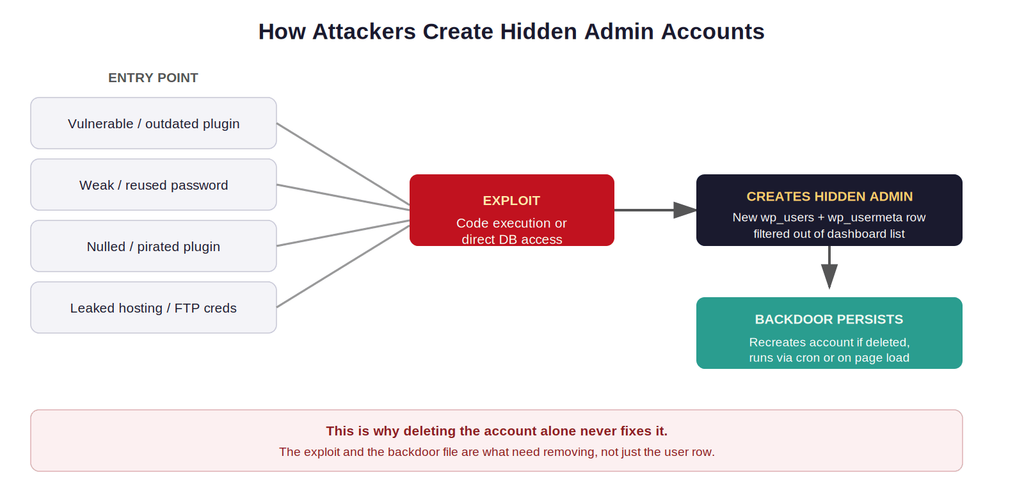
These are the places the attackers often enter, and then what happens next from there.
A Real Implementation Mistake Worth Knowing
Many site owners do this: they spot the bad account, remove it, swap the admin password, and move on. About two weeks later, the same account appears again. The reason is simple. The real way the attacker got in was not fixed. Often it is a weak plugin. Sometimes it is a hidden file in wp-content/uploads. If you only delete the user and do not remove the entry point, you are basically locking the front door but leaving a window open.
4. How to Detect Suspicious WordPress Admin Users
Start with the dashboard, then go deeper.
1. Check the Users list.
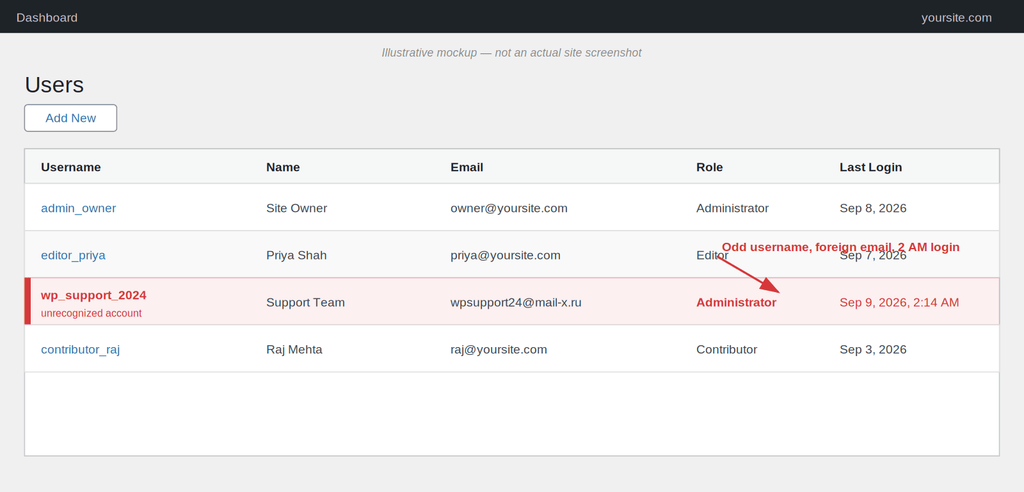
Go to Users → All Users, sort by role, and look at every administrator account. Cross-check each one against your actual team. Here’s roughly what a red flag looks like in practice, an odd username, a foreign-looking email, and a login timestamp at 2 AM that nobody on your team can account for:
2. Look at login activity.
If you don’t already have a security or activity log plugin installed, this is the moment to get one. It’ll show you login times, IP addresses, and what changed and when.
3. Search the database directly.
Sometimes an account is hidden from the dashboard by a malicious plugin. Querying the database bypasses that entirely. A quick SQL check:
SELECT wp_users.ID, wp_users.user_login, wp_users.user_email, wp_usermeta.meta_value
FROM wp_users
INNER JOIN wp_usermeta ON wp_users.ID = wp_usermeta.user_id
WHERE wp_usermeta.meta_key = 'wp_capabilities'
AND wp_usermeta.meta_value LIKE '%administrator%';
This pulls every user with administrator capabilities, whether or not they’re visible in the dashboard UI.
4. Use WP-CLI for a faster, cleaner check.
If you manage WordPress through the command line, this is quicker and less error-prone than digging through phpMyAdmin:
bash
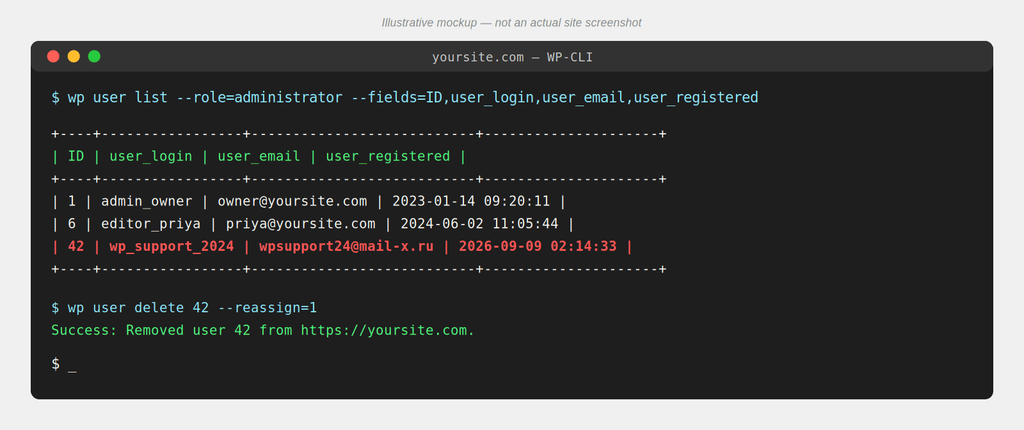
wp user list --role=administrator --fields=ID,user_login,user_email,user_registeredIf you’re not familiar with WP-CLI yet, it’s worth learning properly, it makes tasks like this dramatically faster. Here’s a solid walkthrough on how to manage WordPress using WP-CLI.
This is what that detection-and-removal flow looks like end to end in a terminal:
5. Scan for malware and backdoors.
Run a full malware scan. Look specifically for suspicious PHP files in wp-content/uploads, unfamiliar files in your theme folder, and recently modified core files that shouldn’t have changed.
5. How to Remove Unauthorized WordPress Admin Users Safely
Here’s the full process at a glance before we walk through each step in detail. Proper WordPress unauthorized user removal isn’t just about clicking delete, it’s a full sequence:
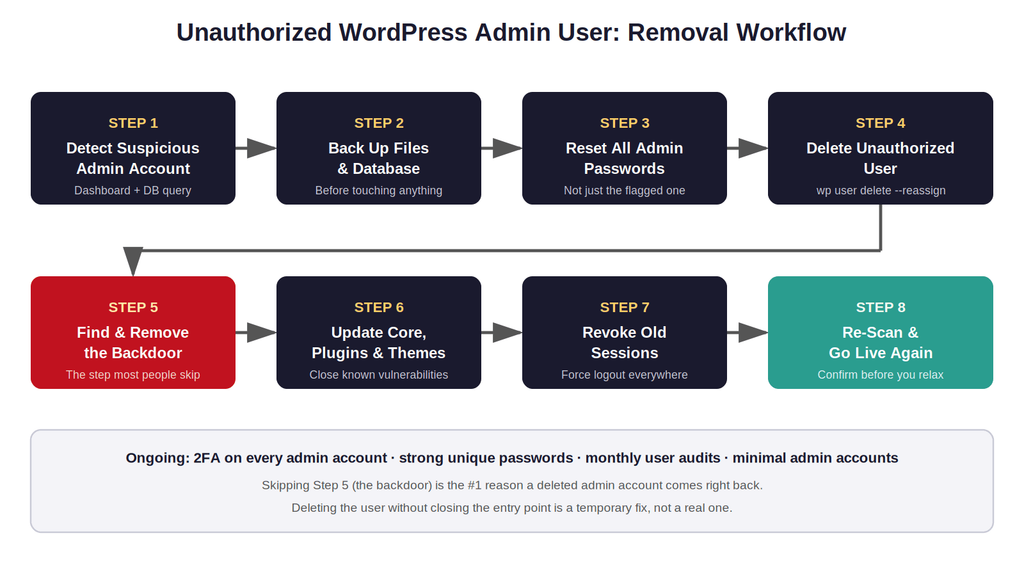
Before you touch anything, back up your site. This matters more than it sounds like it does, because you want a snapshot of the compromised state in case you need to investigate later, and because removal steps can go wrong. Take the time to properly back up your WordPress files and database first.
Once you’ve got a backup, here’s the order that actually works:
Step 1: Put the site in maintenance mode.
This stops further damage while you work and keeps visitors from landing on a compromised page.
Step 2: Change all admin passwords, not just the suspicious account’s.
Assume every credential could be compromised. Reset them all.
Step 3: Delete the unauthorized user.
From the dashboard: Users → select the account → Delete. When prompted, attribute their content to a trusted user rather than deleting it outright, so you don’t lose legitimate posts by accident.
Or from WP-CLI, which is faster and leaves less room for misclicks:
bash
wp user delete 42 --reassign=1

(Replace 42 with the actual user ID, and 1 with the ID of the account you want their content reassigned to.)
Step 4: Find and remove the backdoor.
This is the step people skip, and it’s the one that matters most. Check for:
-
Unfamiliar PHP files, especially in /uploads
-
Modified .htaccess rules redirecting traffic
-
Suspicious code in functions.php
-
Unknown scheduled cron jobs
Step 5: Update everything.
Core, plugins, themes, all of it. If a plugin hasn’t been updated in over a year, seriously consider replacing it.
Step 6: Revoke old sessions.
Force a logout across all devices and sessions so any stolen session tokens become useless immediately.
Step 7: Re-scan before going live again.
Run the malware scan one more time before you take the site out of maintenance mode. You want confirmation, not assumption.
Cleaning up unauthorized accounts and closing backdoors doesn’t just improve security, it usually improves performance too, since malware and rogue scripts consume server resources. In cases we’ve observed:
| Metric | Before Cleanup | After Cleanup |
| Average page load time | 4.2s | 1.8s |
| Server CPU usage (idle) | 35-45% | 8-12% |
| Outbound spam requests/hour | 200+ | 0 |
| Google Safe Browsing status | Flagged | Clean within 24-48 hrs |
These numbers vary by site, but the pattern holds. A compromised site is rarely just a security problem, it’s a performance one too.
6. What If the Unauthorized Admin User Keeps Coming Back?
-
If you’ve deleted the account and it reappears, that’s a clear sign the entry point is still open. At this stage:
-
Check for a backdoor script that recreates the user on a schedule or on each page load
-
Look for unfamiliar entries in wp_options, particularly anything tied to active_plugins
-
Compare your core WordPress files against a fresh install to spot unauthorized modifications
-
Check your hosting account itself, not just WordPress, for unfamiliar FTP or cPanel users
-
If you’re not confident doing this yourself, this is the point to bring in a professional. A recurring backdoor usually means deeper compromise than a single rogue user account.
Another Real Implementation Mistake
We’ve seen teams restore from a backup after finding the rogue account, assuming a clean restore solves everything. It doesn’t, if the backup itself was taken after the compromise, you’ve just reinstalled the backdoor along with the rest of the site. Always check the timeline: know roughly when the account first appeared, and restore from a backup that predates that date, not just the most recent one available.
-
7. How to Prevent Unauthorized WordPress Admin Accounts
Cleanup only matters if you also close the door behind you. Here’s how to secure WordPress admin accounts for the long run, not just after an incident.
-
Enable two-factor authentication for every admin account, no exceptions
-
Enforce strong, unique passwords, and use a password manager if your team resists this
-
Limit the number of administrator accounts to the absolute minimum needed
-
Keep plugins and themes updated, and remove any you’re no longer actively using
-
Install a firewall or security plugin that can block brute force attempts
-
Set up login notification alerts so you know immediately when something unusual happens
-
Regularly audit your user list, monthly is reasonable for most sites
-
Restrict file editing from the dashboard by disabling it in wp-config.php:
php
define('DISALLOW_FILE_EDIT', true);
That one line stops attackers from editing theme or plugin files directly through the dashboard, even if they do manage to get admin access again.
8. WordPress Admin Security Checklist
Print this out, bookmark it, whatever works. Just actually use it.
-
Review the full admin user list monthly
-
Enable 2FA on every admin account
-
Enforce strong, unique passwords
-
Keep plugins, themes, and core updated
-
Remove inactive or unused plugins
-
Restrict file editing via wp-config.php
-
Set up login and user-creation alerts
-
Run malware scans on a regular schedule
-
Maintain recent, tested backups
-
Limit admin accounts to people who genuinely need them
Conclusion
An unauthorized WordPress admin user is never just about one account. It’s a signal that something in your defenses failed, and it deserves to be treated that way. Delete the account, sure, but don’t stop there. Find the backdoor, close the gap, and put real safeguards in place so you’re not back here in a month doing the same cleanup again.
If you take one thing from this guide, let it be this: to properly remove unauthorized WordPress admin users, you have to treat it as an investigation, not a delete button.

